I had a complicated explanation of how to do this for a Mavic Air 2, involving iTunes, but I’ve lost track of it. Can somebody please direct me to Mike’s write-up?
Or maybe there’s a simpler way now?
Cheers! – jclarkw
I had a complicated explanation of how to do this for a Mavic Air 2, involving iTunes, but I’ve lost track of it. Can somebody please direct me to Mike’s write-up?
Or maybe there’s a simpler way now?
Cheers! – jclarkw
Mike – Fantastic! I’m eager to try your “new” Flight Log Transfer Service, as it sounds a huge improvement over the old iTunes approach.
While digging in Google search, I found that Apple has a new approach also, “Apple Devices,” although this method requires installing a file-sharing app on the iPhone as well as the one on the PC.
Very Best Regards! – jclarkw
Mike – I’m trying but not succeeding to connect my iPhone to your Flight Transfer Service. (I’ve never deliberately run a server from my computer, so the problem is likely in my understanding of the situation.) Right now I can only offer these observations:
Flight Reader 1.8.43 is installed and running fine on my Windows 11 Pro system, at least to the extent that it will ingest flight logs from DJIFly that already reside on my PC.
When I start your Flight Log Transfer Service, it shows the shows the screen with the QR code; and when I click the explicit link (http://192.168.0.119:5382/) there, it opens a browser window and invites me to brows my file system and select flight logs. It even imports selected logs.
The Services app on the PC, says your service is set to automatic and is running. Nevertheless, the page with the QR code in Flight Reader continues to say, “Service Status: offline,” whatever that means.
On my iPhone 13 Pro, if I enter the explicit link above into my Web browser of choice, Chrome, the attempted connection times out with no other errors or warnings.
I do run a front end for Windows Firewall called on my PC called Windows 11 Firewall Control, but it’s not objecting to Flight Reader, nor does it even mention the service. Nothing changes when I open W11FC to all traffic.
I haven’t examined your firewall rule, as I haven’t learned how to operated Windows Firewall directly.
What should I try next? – jclarkw
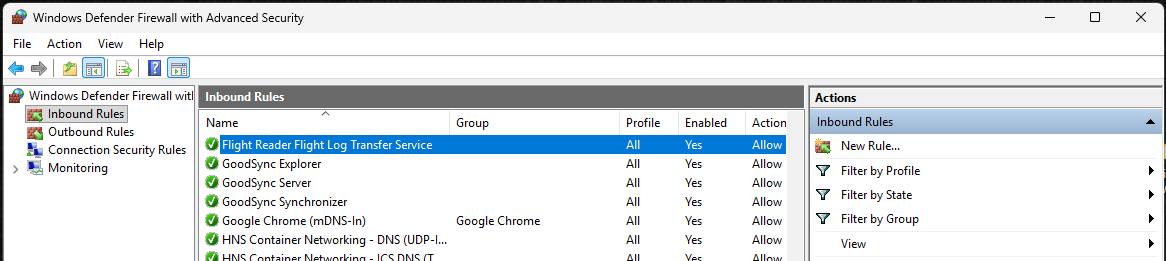
Most people running Windows are using Windows Defender Firewall as their firewall since it’s installed by default. When Flight Reader is installed, it creates this rule:
If that rule is missing or Windows 11 Firewall Control does not have that same rule in place, then it could be blocking port 5382. If you completely shut down all firewalls on your PC, that will at least rule out a firewall issue.
Mike – I can confirm that your Windows firewall rule is still in place and active.
Regarding shutting down Windows firewall (along with W11FC of course), I’m not keen on it since the only protection I would then have comes from an unsupported router.
Wondering if unplugging the router from the WAN (Internet) would still allow communication among LAN members… Do you happen to know?
Right, so I’m not suggesting you permanently shut down your firewalls. Just shut them down long enough to try the transfer process without them potentially blocking the needed port.
The Flight Log Transfer Service runs locally, so it’ll work whether or not an Internet connection is available. It just needs to be on the same local network as Flight Reader and any computers or devices interacting with that service.