That points to
C:\Users\willett\Documents\FlightReader\Repository\Aircraft\3N3BH8601200F4\1791147821259
But this is the log that I transferred 3 days ago, not the one I tried to transfer today.
I’m trying this transfer again with more than one file…
That points to
C:\Users\willett\Documents\FlightReader\Repository\Aircraft\3N3BH8601200F4\1791147821259
But this is the log that I transferred 3 days ago, not the one I tried to transfer today.
I’m trying this transfer again with more than one file…
Tried two more relatively large ones from iPhone, but if they turned up on the PC, I don’t see where.
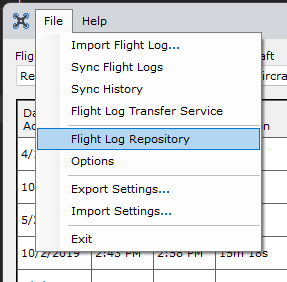
By default, the Flight Log Repository location should point here:
C:\Users\willett\Documents\FlightReader\Repository
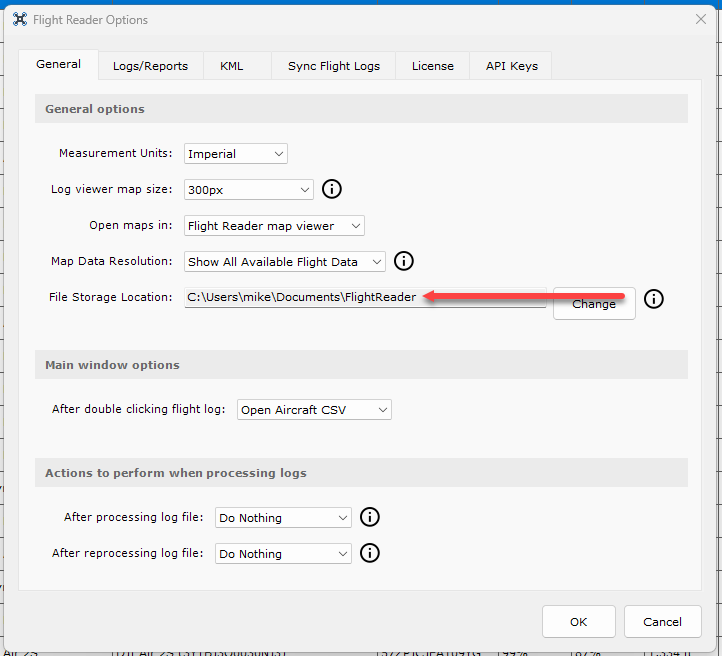
If it’s really pointing to the directory above, then you should reset the Flight Storage Location to the following directory in the General tab of the Flight Reader Options window:
C:\Users\willett\Documents\FlightReader
As for any flight logs that were transferred to the repository via the Flight Reader Flight Log Transfer Service, those should all be documented in these logs:
If you see files listed in those logs, that’s a sign that they’ve been moving to the repository. And then Flight Reader should have detected those new files and attempted to process them.
[C:\Program Files (x86)\Flight Reader\Services\FlightLogTransfer\logs:
10/30/2026 01:00:31 PM] Starting local web server…
[10/30/2026 01:00:31 PM] Local web server started at “http://192.168.0.119:5382”.
[10/30/2026 01:24:49 PM] Transferred flight log to “C:\Users\JCWAdministrator\Documents\FlightReader\Repository\FlightRecord_2026-07-04_[11-35-12].txt”.
[10/30/2026 01:28:59 PM] Transferred flight log to “C:\Users\JCWAdministrator\Documents\FlightReader\Repository\FlightRecord_2026-07-04_[11-35-12].txt”.
[10/30/2026 01:30:53 PM] Transferred flight log to “C:\Users\JCWAdministrator\Documents\FlightReader\Repository\FlightRecord_2026-07-04_[11-35-12].txt”.
[10/30/2026 01:42:03 PM] Transferred flight log to “C:\Users\JCWAdministrator\Documents\FlightReader\Repository\FlightRecord_2026-07-04_[11-35-12].txt”.
[10/30/2026 01:42:29 PM] Transferred flight log to “C:\Users\JCWAdministrator\Documents\FlightReader\Repository\FlightRecord_2026-07-04_[11-35-12].txt”.
[10/30/2026 03:12:56 PM] Transferred flight log to “C:\Users\JCWAdministrator\Documents\FlightReader\Repository\DJIFlightRecord_2024-07-01_[14-57-33].txt”.
[10/30/2026 03:12:56 PM] Transferred flight log to “C:\Users\JCWAdministrator\Documents\FlightReader\Repository\DJIFlightRecord_2025-10-03_[15-39-13].txt”.
I’ll have to postpone examining the location, C:\Users\JCWAdministrator\Documents\FlightReader\Repository\, until tomorrow…
Is there any way to attach an image to one of these posts??
Yes, you can either copy a photo to your computer’s clipboard and paste it directly into your reply, or simply drag and drop the photo into the box where you’re typing your reply.
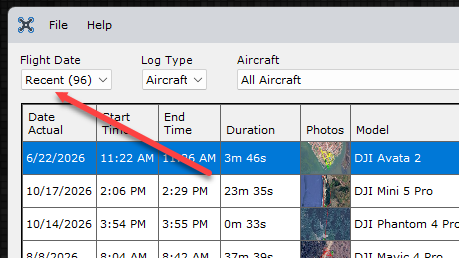
That latest log you posted looks good. It’s showing flight logs transferring to the default repository location. If you still cannot see recently transferred flight logs, then try setting this filter to Recent:
That didn’t help. It was on “Recent;” now it’s on “All Time,” and it still shows just the one file I imported manually a few days ago.
Note that the repository currently belongs to an administrator, whereas I’m running (have always run) Flight Reader and all other normal software from a Standard User account. (Of course I had to install it as an administrator.) Perhaps this is another “security improvement” in Windows 11 wrt. Windows 10? Perhaps Flight Reader’s lower rights as my Standard User don’t permit it to process files that have administrator privileges?
I always relocate my personal Standard-User folder system, “Documents,” “Music,” “Pictures,” and “Videos,” to a second drive, “E:,” for easier data management and system restores. In my previous installation under Windows 10 I had the repository located conveniently near my folder of copied past log files in my “Documents” tree. Can I re-direct the repository to a more convenient location?
Should I simply uninstall Flight Reader and re-install it with more care to the settings?
Thanks for your ongoing help with this! – jclark
Now that you’ve identified the correct address for the Flight Reader Flight Log Transfer Service and are able to send files to it, I think the next logical step would be to watch the folder shown in the Flight Reader Flight Log Transfer logs. That way, you can see what’s happening in real-time when you attempt to transfer flight logs. You should see the incoming files appear in that folder.
If that’s working, the next step would be to watch Flight Reader itself. Check the status at the bottom of the main window to see if those incoming flight logs are being processed. You should also see the files disappear from that folder once Flight Reader finishes processing them.
At this point, we still don’t know exactly where things are breaking down, so I think jumping ahead to figuring out which filter to select in Flight Reader might be a bit premature. Let’s first make sure the flight logs are making it through each step of the process.
OK, I understand your first step (although I think we have already confirmed that.
But I don’t understand your second step. What is the meaning of the “status at the bottom of the main window?”
Mike – I did another import via the iPhone:
A new log file appeared with today’s date in Logs list on the Transfer Service page as before.
The correct log files were added to the repository on the C: drive as before.
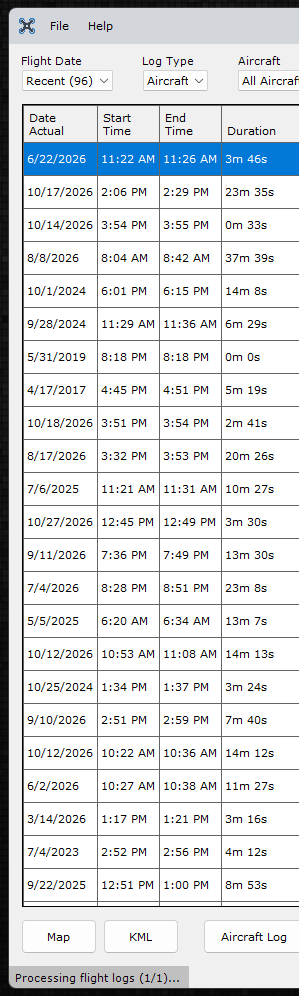
I never saw any indication of processing on the main page.
What next?
Next, confirm the location of the File Storage Location in Flight Reader. It should be one level up from the directory where the Flight Log Transfer Service is transferring flight logs.
And if that looks okay, open the Flight Log Repository and ensure there are no TXT files there waiting to be processed.
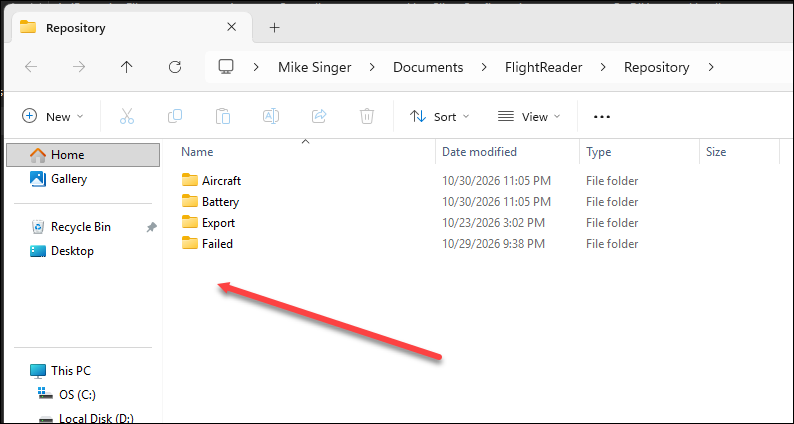
Here’s my repository where no TXT files are waiting to be processed:
File Storage Location says “C:\Users\willett\Documents\FlightReader,” which would have been fine; whereas the log files are actually going to C:\Users\willett\Documents\FlightReader."
The Flight Log Repository says “C:\Users\willett\Documents\FlightReader\Repository,” but there is only one log file there, which is the one that I dragged and dropped ther previously. (The processed files for that flight are there too in the “Aircraft” and “Battery” subfolders.)
None of this sounds right. I hope that answers those questions. – jclarkw
So to confirm, are you saying you see the files from the Flight Log Transfer Service logs being copied to this folder, per the logs?
C:\Users\willett\Documents\FlightReader\Repository
And then those TXT files eventually disappear from that Repository folder?
If so, that’s what you should be seeing.
OPS! – I copied locations wrong! The above should have been:
File Storage Location says “C:\Users\willett\Documents\FlightReader,” which would have been fine; whereas the log files are actually going to “C:\Users\JCWAdministrator\Documents\FlightReader\Repository\.”
The Flight Log Repository says “C:\Users\willett\Documents\FlightReader\Repository,” but there is only one log file there, which is the one that I had dragged and dropped in the Flight Reader main window previously. (The processed files for that one flight are there too in the “Aircraft” and “Battery” subfolders.) There are no processed files for the iPhone-transferred log files anywhere that I can find.
None of this sounds right. I hope that answers those questions. – jclarkw
That all sounds right. Thank you for those details!
Create this folder if it doesn’t already exist:
C:\ProgramData\FlightReader
Download this file and place it in that “FlightReader” folder:
FlightLogTransferService.json (105 Bytes)
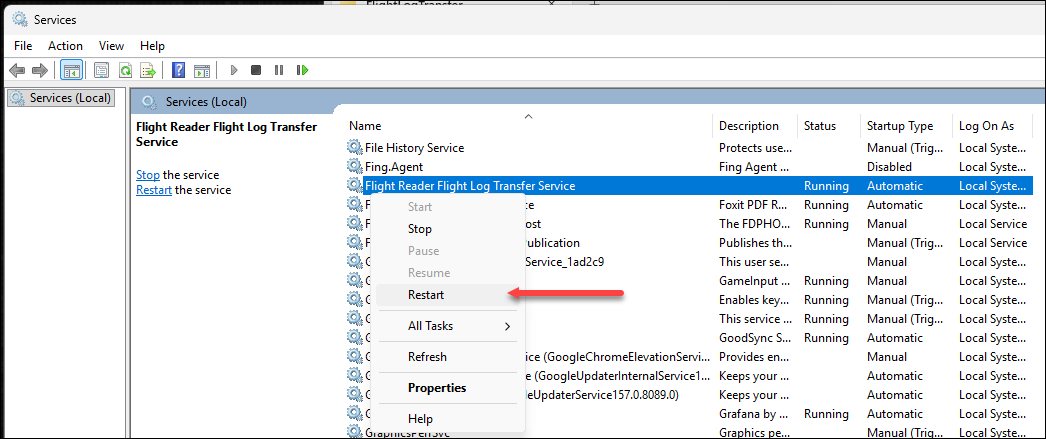
In Windows services, restart the Flight Reader Flight Log Transfer Service:
Try transferring another flight log from your iPhone at this point.
Mike – That worked (almost) perfectly! It appears there were only two fixes needed:
The IP address given in the instructions (and initially on my Flight Log Transfer Service page) was incorrect. It appears that the program picks up the IP address from the PC itself.
The user name given in the Flight Log Repository address (as stored in my FlightLogTransferService.json file) was wrong. This was probably a result of my installing the program from the Administrator account, or maybe actually from running it the first time from there?
A remaining fix might be needed, as I never saw the “Processing” indicator at the bottom left of the main window during my most recent iPhone import, whereas it worked fine for me when dragging and dropping logs). On this last iPhone import, however, I imported all of the 27 files still in my “flight_logs” folder, so there was a lot going on…
From my point of view (since I like to maintain a folder containing all of my flight logs from over the years) I would prefer that the original logs remain in the Repository until I can move/copy them, instead of their being automatically deleted after processing. This is simply a personal preference, however.
Thanks for all your help with this! Now I see that there is a new version that I should install. Should I expect any difficulties from that?
Cheers! – jclarkw
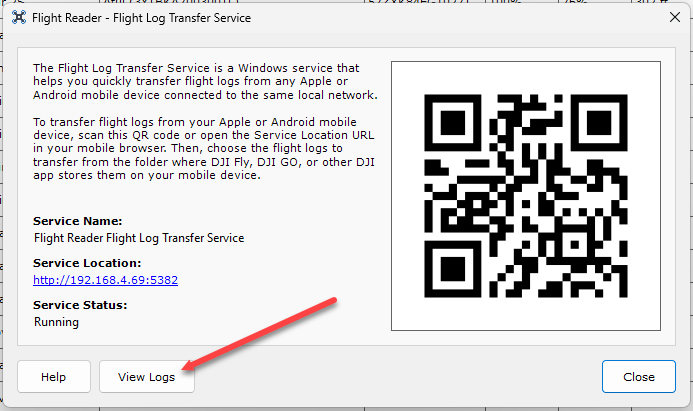
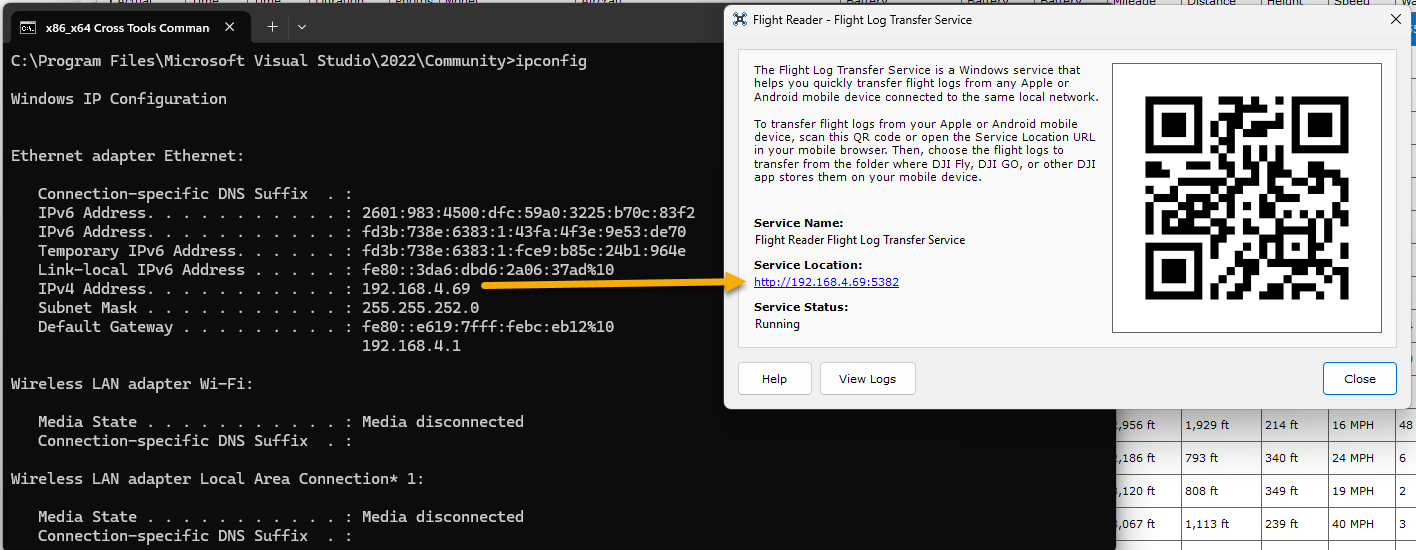
Yes, it should be displaying the IP address of the computer running the Flight Reader Flight Log Transfer Service.
For example, on this computer where I have both Flight Reader and the service installed, you can see that the IP address displayed matches the computer’s IP address:
There are some less common setups where a computer might have more than one active local network interface. In those cases, it’s possible the service could pick the wrong one. I’m not sure exactly how your computer is set up, but it sounds like that might be what’s happening.
I may be able to improve how Flight Reader detects the local IP address so it does a better job of choosing the correct network interface when more than one is available.
This is something I can probably improve so that the service automatically updates that location whenever the Flight Log Storage location is changed in the Flight Reader Options.
I’ll need to look into this one a little further since I haven’t been able to reproduce that behavior.
Whenever a TXT flight log is added to the repository folder, whether you copy it there manually or the service places it there, Flight Reader should automatically detect it and start processing it. When that happens, the processing status at the bottom of the main Flight Reader window should update.
Flight Reader uses the same process to handle those files regardless of how they end up in the repository folder, so I would expect that status to work the same way in both cases.
My goal is always to release updates that don’t introduce new problems, so I wouldn’t expect you to run into any issues after updating. Of course, if you do notice anything that isn’t working as expected, please let me know and I’ll be happy to take a look.
Dear Mike – This is outstanding support for your software (and impressive software at that)!
It’s always possible that I missed the processing indication, as I was trying to watch many things at the same time. Right now I’m not able to repeat that experiment, as I immediately deleted all the logs from my iPhone. So don’t worry too much about it until I or somebody else reports the same issue.
Thanks very much for your help with my problem! Now Flight Reader is not such a black box to me as it was. – jclarkw