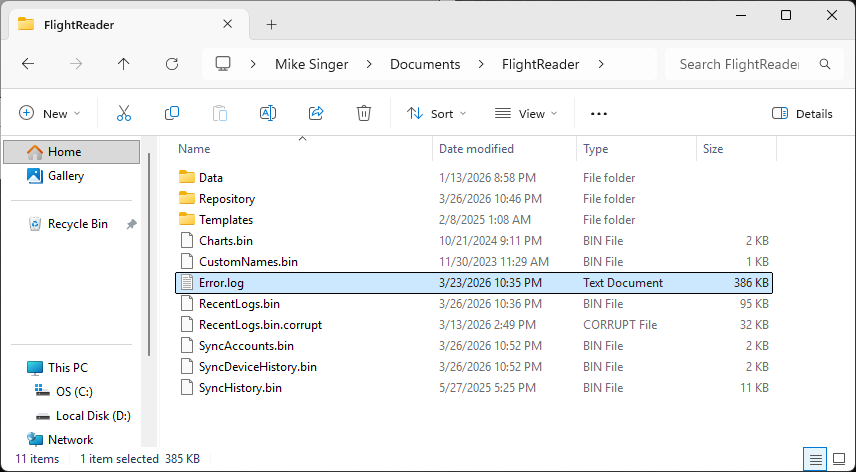
After installing a new version of Flight Reader, flight logs that were processed in a previous version might seem to be missing. This can make it look like a fresh installation that has never processed any flight logs.
Try these steps to recover your missing flight logs:
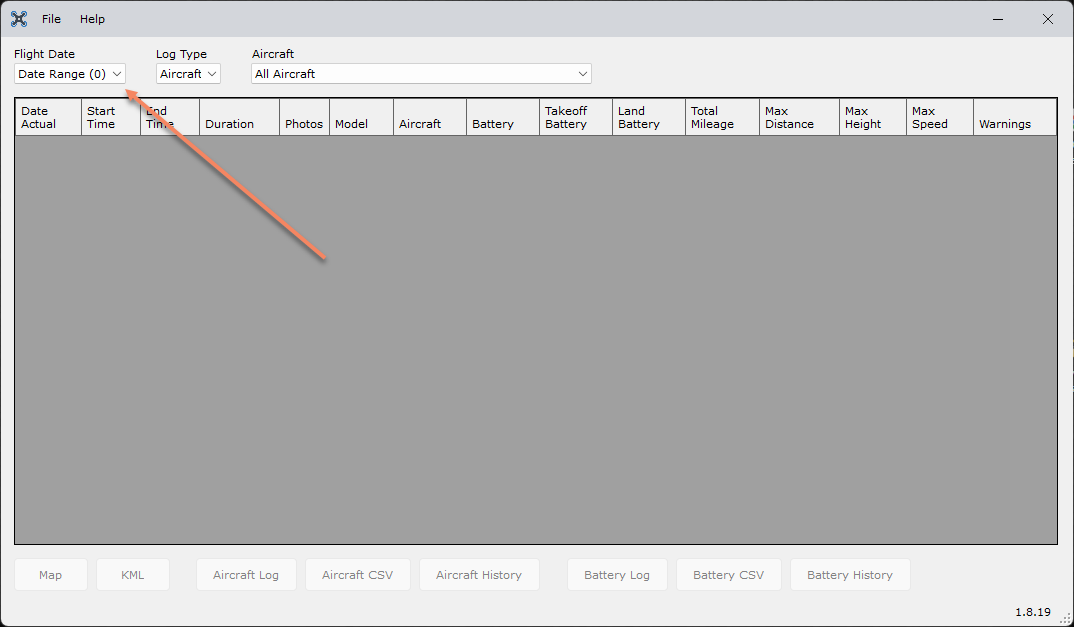
1) Check the Flight Date filter at the top of the main Flight Reader window. Make sure it is not set to a timeframe with no flights.
When All Time is selected, you should see all flight logs processed in previous versions of Flight Reader.
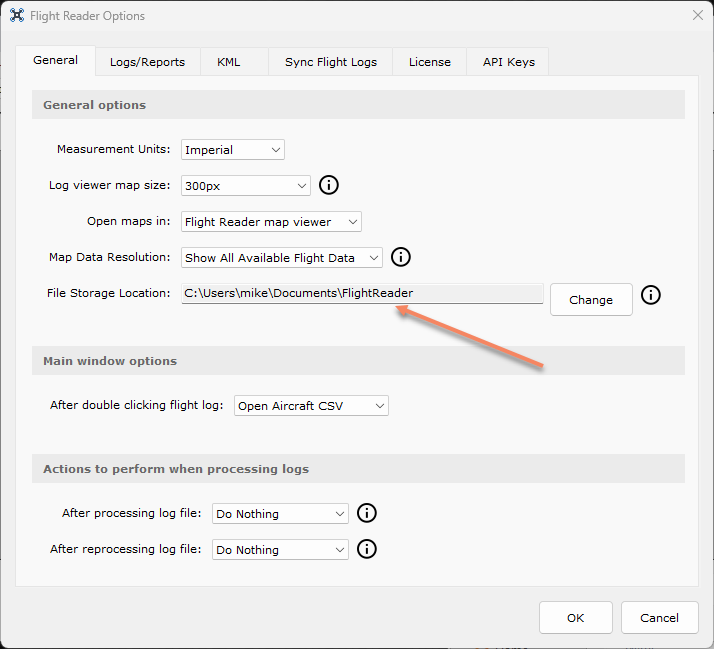
2) Verify that the Flight Storage Location is set to the same location used by the previous version. By default, this folder is located here:
Inside the Flight Reader folder, you should see Aircraft and Battery folders within the Repository folder. These folders contain all processed aircraft and battery data.
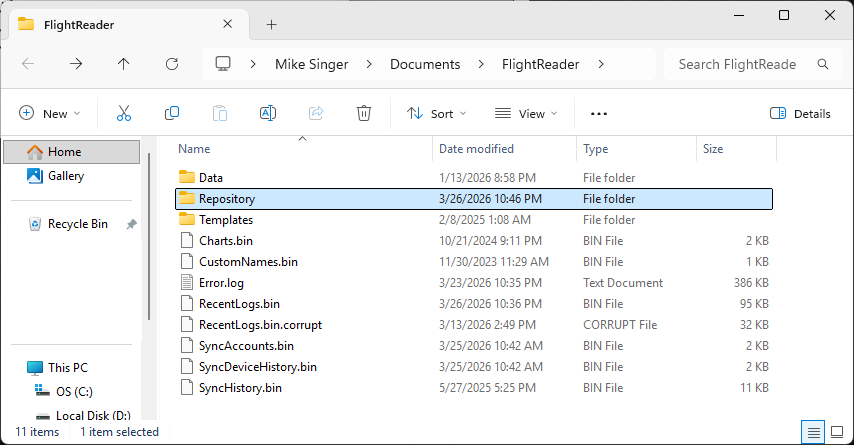
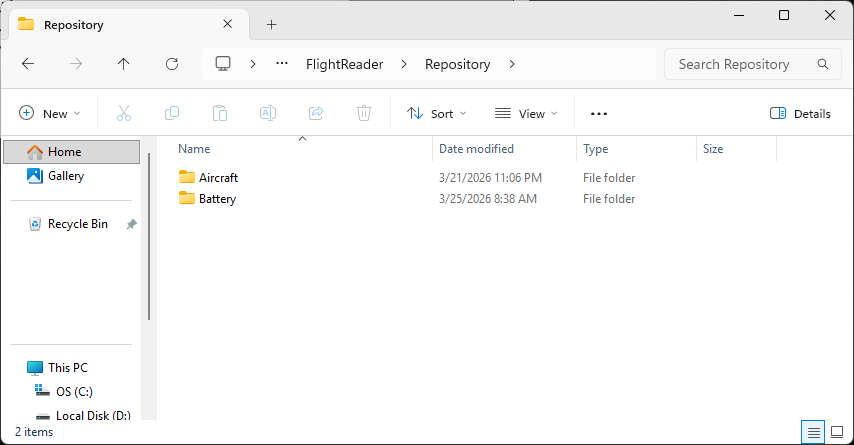
Also make sure Flight Reader has full access to this folder. Third party security software can sometimes block access, especially after installing a new version.
3) If your flight logs appear to be in the Flight Reader repository and nothing seems to be blocking access, check the Flight Reader Error.log file for any errors that occur when Flight Reader starts.
Note: If you need help troubleshooting any logged errors, please send your Error.log file to support@flightreader.com.
If the Error.log file exists, it will be located in this directory: