Some Windows 11 systems block Flight Reader during installation due to Microsoft’s Smart App Control feature. This can happen even though Flight Reader is signed with a valid code signing certificate. Smart App Control often blocks newer applications simply because they have not been widely seen yet.
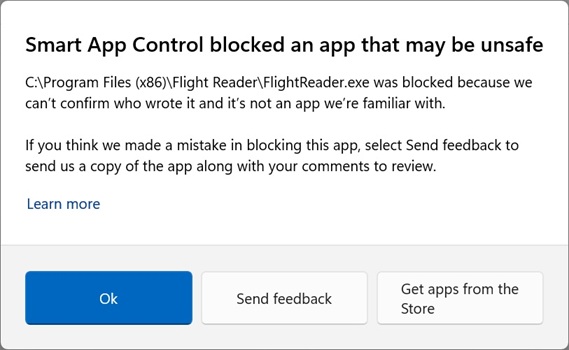
If Smart App Control is preventing Flight Reader from installing, you can disable it either temporarily or permanently. Once it is disabled, Flight Reader should install normally.
Steps to Disable Smart App Control
-
Click the Windows Start button, type Windows Security in the search bar, and open the application.
-
In the menu on the left, click App & browser control.
-
At the top of the page, under Smart App Control, click Smart App Control settings.
-
Select Off. Restart your computer if prompted.
Note: If Smart App Control is turned off, it cannot be turned back on without reinstalling Windows.
-
Run the Flight Reader. It should now work without being blocked.